Pages

Wednesday, May 1, 2013

Getting NetBackup 7.5 files for install

We just upgraded our NetBackup from 7.1 to 7.5. These are my notes on upgrading our UNIX and Linux clients.

Go to https://fileconnect.symantec.com and download the required files. You will need to enter a serial number to get access to the files. As seen to the right.

After you download the files you will have to join them together before you can do a install.


Unix joining instructions:
cat "NB_CLT_7.5.0.4-tar-split.1of3" "NB_CLT_7.5.0.4-tar-split.2of3" "NB_CLT_7.5.0.4-tar-split.3of3" > "NB_CLT_7.5.0.4.tar"

now you are ready to begin the install.

Installing Sudo on Solaris 10

These are the notes on installing sudo on Solaris 10. In order to install sudo you will also need to install some dependencies. I have listed the needed packages below.

Packages
Package Name Application Description
SMCsudo sudo Provides limited super user privileges
SMClintl libintl GNU locale utilities, libintl.so.2
SMCliconv libiconv GNU iconv library, libiconv.so.2
SMCzlib zlib Zlib data compression library, libz.so.1
SMClgcc libgcc The GNU Compiler Collection, libgcc_s.so.1

Installing the packages
mv filename /tmp
cd /tmp
gunzip filename
pkgadd -d filename

Links to where you can get the packages.
www.sufreeware.com
  unixpackages.com paid site, the paid version of sunfreeware.

Tuesday, April 30, 2013

Add Zone Function to Solaris 10 Core build

These are my notes on adding the zone functionality to Solaris. Solaris 10 comes with six Software Groups. The Software Groups are, from lowest to highest, Reduced network Support, Core System Support, End User, Developer, Entire and Entire Plus OEM.

I installed Solaris 10 at the Core level. When I tried to install a zone it couldn't find the zonecfg command. This is because the packages needed to support zones are not install at this level. Below are the packages I install to in order to get zone functionality on my Solaris 10 server.

SUNWzoneu
SUNWzoner
SUNWpoolr
SUNWluzone
SUNWluu
SUNWlur
SUNWlucfg

Thursday, April 25, 2013

Bash Shortcut keys

I found this little reference chart on the short cut keys in BASH. These short cut keys allow for command line editing. I for example use Ctrl + A all the time to edit the line.


Ctrl + A Go to the beginning of the line you are currently typing on
Ctrl + E Go to the end of the line you are currently typing on
Ctrl + L            Clears the Screen, similar to the clear command
Ctrl + U Clears the line before the cursor position. If you are at the end of the line, clears the entire line.
Ctrl + H Same as backspace
Ctrl + R Let’s you search through previously used commands
Ctrl + C Kill whatever you are running
Ctrl + D Exit the current shell
Ctrl + Z Puts whatever you are running into a suspended background process. fg restores it.
Ctrl + W Delete the word before the cursor
Ctrl + K Clear the line after the cursor
Ctrl + X Then Backspace clear the line before the cursor
Ctrl + T Swap the last two characters before the cursor
Esc + L Changes to upper case
Esc + U Changes to lower case
Esc + T Swap the last two words before the cursor
Alt + F Move cursor forward one word on the current line
Alt + B Move cursor backward one word on the current line
Tab Auto-complete files and folder names

Referance:
http://www.howtogeek.com/howto/ubuntu/keyboard-shortcuts-for-bash-command-shell-for-ubuntu-debian-suse-redhat-linux-etc/
I found this chart at the link above.

Monday, April 22, 2013

Mount an ISO in Solaris 10

Sometime I run into an issue were I need to install a program and the only installer I can find is on a CD or DVD. Unfortunately most servers don't have CD/DVD players. I can usually download the media, in the form of an ISO from the vender website. Then the issue is how do I get the application out of the ISO if you don't have a CD or DVD drive. Luckily for me, most UNIX based Operating Systems can mount a ISO. In much the same way you would mount an NFS (Network File System) or other external volumes, like a CD/DVD drive. As the title suggests this How-to will focus on doing this on a Solaris 10 server.

Mounting an ISO

# lofiadm -a /path/to/cd.iso
/dev/lofi/1

Now you can mount the ISO. # mount -o ro -F hsfs /dev/lofi/1 /mnt

Unmount and detach the images

# umount /mnt
# lofiadm -d /dev/lofi/1

Useful links
http://www.cyberciti.biz/faq/howto-mount-sun-solaris-cd-iso-image/
http://bradthemad.org/tech/notes/solaris_mount_iso.php

Monday, April 15, 2013

Make Firefox load ILOM pages, Part III

This yet anther way to make Firefox load the ILOM web interface properly. Posted below is a script my co-worker wrote. Basically it adds the content to the userContent.css file via this script. This way you don't have to edit the file manually, like you had to in my other post "Make Firefaox load ILOM pages".


export PROFILE_IDZ=$(grep Path= $HOME/.mozilla/firefox/profiles.ini | awk -F={`print $2`})
export FILE4FIXZ-"~/.mozilla/firefox/${PROFILE_IDZ}/chrome"

mkdir -p ${FILE4FIXZ}
touch ${FILE4FIXZ}/userContent.css

echo "@media print {" > ${FILE4FIXZ}/userContent.css
echo "}" >> ${FILE4FIXZ}/userContent.css
echo " " >>  ${FILE4FIXZ}/userContent.css
echo "@namespace url (https:www.w3.org/1999/xhtml);" >>  ${FILE4FIXZ}/userContent.css
echo "#mainpage { visibility: visible !important; }" >>  ${FILE4FIXZ}/userContent.css

cat  ${FILE4FIXZ}/userContent.css


If you have comments please post below.

Thursday, April 11, 2013

Script for checking accounts

In a perfect world all user accounts are centrally managed by a directory server such as NIS, LDAP or Active Directory. Unfortunately not all servers use accounts that are centrally managed or there are some servers that are set aside, as stand alone servers. It a can be a real pain to find out your account's password expired. Then be forced to change it before you can login. So I wrote this is a little script because I need to know when my passwords are about to expire. This way I can change my passwords on all the servers, before they expire.

I have three different operating systems at work so of course they all do this differently. In this how to I will be using examples from Solaris 10, RHEL 5 (Red Hat Enterprise Linux) and SLES 11 (SUSE Linux Enterprise Server). I created a different file, containing the server names, for each OS.

The script below logs into each server listed in the server-sol file and runs the passwd -s command and prints the output on the screen. It then runs the change -l command on the Linux servers. SUSE needs elevated privileges to run the change -l, so I add sudo to the line. The line where you see the echo statement, prints the server's name indented and in bold.

man@earth>cat check-login2
for s in `cat server-sol`
do echo -e "\e[1m $s \033[0m "
ssh -q $s sudo passwd -s man
done
for r in `cat server-rhel`
do echo -e "\e[1m $r \033[0m "
ssh -q $r chage -l man
done
for sles in `cat server-suse`
do echo -e "\e[1m $sles \033[0m "
ssh -q $sles sudo chage -l man
done

Examples of out from script on the different OS versions.
man@earth>./check-login2
   solaris-server
rich PS 04/03/13 7 56 7
   rhel-server
Last password change : Apr 03, 2013
Password expires : May 29, 2013
Password inactive : never
Account expires : never
Minimum number of days between password change : 7
Maximum number of days between password change : 56
Number of days of warning before password expires : 7
   sles-server
Minimum: 1
Maximum: 60
Warning: 7
Inactive: 35
Last Change: Apr 03, 2013
Password Expires: Jun 02, 2013
Password Inactive: Jul 07, 2013
Account Expires: Never

As you can see there is a difference in the output each OS gives you. If you have any comments or questions please post them below.

Friday, March 29, 2013

Installing Firefox on Solaris (Update)

On this post I'm going over how to install Firefox on Solaris 10. This is an update from one of my earlier posts. The reason for this update is because there has been some changes on how you get Firefox. The place where Mozilla would point it's uses to download Firefox was the OpenSolaris.org website. Oracle took down the OpenSolaris.org website on March 23 2013. As my old instructions used a different install process, I felt I needed to rewrite this how-to.


The other main place to get Firefox is at SunFreeware.com or UNIXpackages.com, which are the same people. The only issue with getting Firefox from there site is that it is not actually from them. They go out of there way to say this on there site and I quote; "They are the ONLY packages in our repository that are not compiled by us, and were contributed by External Offshore developers in East Asia". The quote used to say "contributed by developers in Beijing China", apparently someone complained and a change was made. With all the hacking allegations concerning China you may not not want to get Firefox from them.

The other places that host Solaris software or packages is blastwave and OpenCSW.org. Blastwave is now a dead project and OpenCSW.org doesn't have Firefox in their package list.

Now I have some good news and some bad news. Good news Oracle is now providing patches and/or packages for Firefox. The bad news is that they are not keeping up with the Firefox versions from Mozilla. Not to mention the CVE vulnerabilities that are coming out.

Below I list two places to get Firefox from Oracle. You will need a Oracle Support login to download the files. The 2nd link lets you see the 3rd party patches that are available before you need to login to Oracle. You can get newer versions of Firefox, then what is linked to below, by putting in a ticket (SR) to your MOS (My Oracle Support) account.
Oracle Support document 1448883.1
Third Party Software in Oracle Products webpage.

The main package for Firefox is SUNWfirefox. There are a few additional Firefox packages that you might have installed on your sever. To see what Firefox related packages are on your server run the command below.
# pkginfo -l | grep firefox
PKGINST: SUNWfirefox
PKGINST: SUNWfirefoxl10n-es-ES
PKGINST: SUNWfirefox-devel

To see a complete list of Solaris 10 packages click here.

Oracle has provided the following patches for Firefox: 145080-11 (x86) & 145080-12 (SPARC). Applying this patch may take a little longer then what you are used too but, it will upgrade Firefox from 3.X to Firefox 10.0.7. # mv 145080-12.zip /tmp
# unzip 145080-12.zip
# patchadd 145080-12

Congrats you have install the ESR version Firefox on Solaris 10. Oracle also has an updated version of Firefox for Solaris 11, coming soon.

My Other Firefox posts.
Installing Firefox on a Solaris server
Installing Firefox on Solaris (Update II)
Installing Firefox on Solaris (Update III)

If you have anything to add please post below.

Thursday, March 28, 2013

Change the ILOM IP address

From time to time I have to change the IP addresses on the ILOM (Integrated Lights Out Manager). So I decided to post my notes on how to do this and maybe someone will find it useful. There is also anther older hardware manger called ALOM (Advanced Lights Out Manager), this not the same. They both the provide console access to your server. For these don't know, console access is when you get remote access to a server, as if you where right next to it. So basically you see everything as if you where physically there. Note that this post changes the IP address for the MGT (management) port. This doesn't change the servers IP address for the OS installed on the hardware.

If this is the first time anyone has logged in then the ILOM will be set to the defaults. The default username is root and the default password is changeme.
# ssh root@server-ILOM
Are you sure you want to continue connecting (yes/no)? yes
Password:

For most severs with ILOM just put in the commands like you see below in the example. -> cd SP/network
-> set pendingipaddress=10.1.0.10
-> set pendingipgatway=0.0.0.0
-> set pendingipnetmask=255.0.0.0
-> set pendingipdiscovery=static
-> set commitpending=true

To check you work or see what your IP settings are, type ls or use the command below
You can see your IP address from any place in the ILOM by running the command below. -> show /SP/network 
To change the IP address of the chassis or CMM that hold the blade servers. Login and go to /CMM/network like in the example below and run the same commands as above. -> cd CMM/network
You can change the IP to the blades from the chassis ILOM as well. -> cd CH/BL#/SP/network

If you have any comments or questions please post them below.

Friday, March 1, 2013

How to set up SHA-256 or SHA-512 hashing

These are my notes on how to setup better password hashing on your Solaris 10 servers. To make your servers more secure, you will want to use SHA-256 or SHA-512 password hashing. Many old servers use a weaker hash by default. In the example below user1 is using the MD5 hash and user2 is using the SHA-512 hash. As you can see, the hash for user2 is using is much longer. The fact that it is longer makes the hash more secure.

user1:$1$QNhPL6JG$fISdvRQdpXSj1seOcYoSk.
user2:$6$GptKlbR1$3Qjb5HBh.2R87N8RkvxWYnpHETXfVCeOEgQTs5EXBs6o9nb6z2tHkqalNt1H2ZI5dicCFkUnRRgWFW65CUOBF0

In /etc/security/policy.conf make sure the following setting is set.
CRYPT_ALGORITHMS_ALLOW=1,2a,md5,5,6

In /etc/security/policy.conf change the following lines to what you see below. #CRYPT_ALGORITHMS_DEPRECATE=__UNIX__
CRYPT_DEFAULTS=6


In /etc/security/crypt.conf you should see the following lines at the end. If there not there, then you most likely don't have this patch 140905-02 installed. If you have a Oracle Support contract you can download it from My Oracle Support.
5 crypt_sha256.so.1
6 crypt_sha512.so.1


I got the info about the missing patch from a post I made at the Oracle Communities forum. Below, I have posted a link to my post.
https://communities.oracle.com/portal

To see what hash your users are using look at your /etc/shadow file. If the users hash starts with $5 or $6 than they are using SHA-256 or SHA-512. After you make the changes above the users will need to reset there password. You will need to use the -d with the passwd command to delete the users password hash. If this is not done the account will continue to use the old hash. On Linux machines you don't need to run the passwd -d command.

passwd -d user1
passwd: password information changed for user1
passwd user1
New Password:
Re-enter new Password:
passwd: password successfully changed for user1


I hope this helps some one out.

Friday, January 4, 2013

Make Firefox load ILOM pages, part II

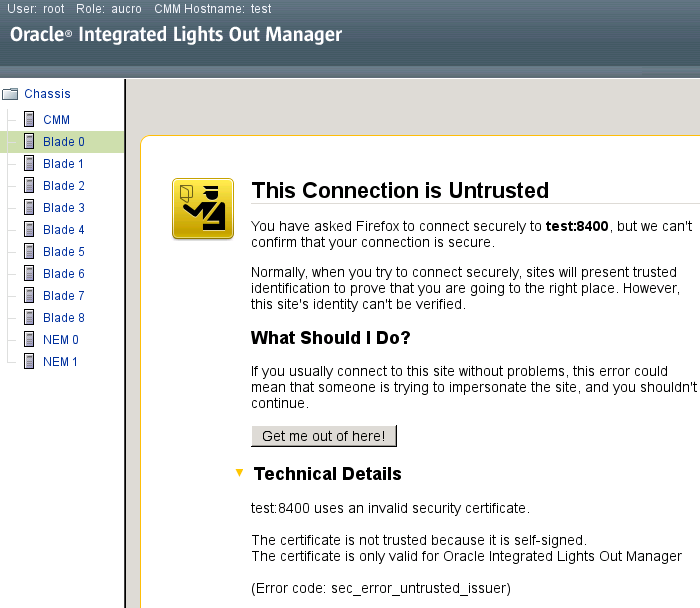
Fig 1. ILOM Certificate error
This is part two of my Make Firefox load ILOM pages. The first post was how to get Integrated Lights Out Manager (ILOM) to load right using Firefox. Part one is focused on getting the ILOM to display properly on a blade or a normal server. This post focuses on getting the ILOM page for the chassis to work.


The issue is when you have logged into the ILOM on the chassis and then try to connect to a individual blade. Figure one shows the error that comes up when you try to connect. Basically the certificate is not excepted by Firefox because it is self-signed.

Fig 2. The fix


This happens when you connect to the blade directly, via the ILOM interface. The issue here is that the button that usually appears that allows you to except the certificate is not there. To get it to where you can load the certificate you need to load the the page outside of the frame. You do this by right clicking on the frame. In the menu select. This Frame and click on Show Only this Frame.


At this point the frame will appear outside the frame. Accept the certificate to load the blades LOM page. To get the frame back go back 2 pages in Firefox. The ILOM page should look like figure 3 when your done. Do this for each blade you need access too.
Fig 3. Finished product

Why does this matter? If you can access the blades ILOM directly then accessing them though the chassis may not be an issue for you. But lets say you don't have your blade cabled up. Many work places don't allow you to connect servers to the network that have not been hardened first. By having the a way to get to the server remotely via the ILOM chassis you can build the server in place and then connect the server to the network after you harden the blade. It is also a good practice to have the ILOMs on there own network.

I can't take credit for this fix. I got this fix from My Oracle Support which means that this is the oracle supported fix. I hope this helps someone. Please feel free to comment below.