Pages

Showing posts with label firefox. Show all posts

Monday, November 25, 2013

Installing Firefox on Solaris (Update III)

These are my updated notes on how to install Firefox on a Solaris 10 server. In this installment, I will go over two different ways to install Firefox. I will be using the files found at the Mozilla website, which just started hosting these files. To check out my previous posts on installing Firefox please check out at the bottom of this post.

The files on the Mozilla site, are the same files that can be found at Sunfreeware.com or UNIXpackages.com. The only issue with getting Firefox from this site is that it is not actually from them. They go out of there way to say this on there site and I quote; "They are the ONLY packages in our repository that are not compiled by us, and were contributed by External Offshore developers in East Asia". The README file on the site says that they where contributed by Oracle Solaris Desktop Beijing Team. I checked with the local Oracle reps in the area and they can't confirm that install files are from Oracle. Anyway if this is not an issue for you then follow the instructions below to install Firefox.

Get the Files
Use the links below to download the files needed for this how to.
http://ftp.mozilla.org/pub/mozilla.org/firefox/releases/24.0esr/contrib/solaris_pkgadd/
http://ftp.mozilla.org/pub/mozilla.org/firefox/releases/24.0esr/contrib/solaris_tarball/

We will use the files below to install Firefox.
firefox-24.1.1esr.en-US.solaris-10-fcs-sparc.tar.bz2
firefox-24.1.1esr.en-US.solaris-10-fcs-sparc-pkg.bz2

Install Firefox from a tar file.
One advantage of installing Firefox with a tar file is that you can install Firefox almost anywhere.  Run the following commands to install Firefox.
root@earth> mv firefox-* /usr/lib/
root@earth> cd /usr/lib
root@earth> bzip2 -cd firefox-24.1.0esr.en-US.solaris-10-fcs-sparc.tar.bz2 | tar xvf - root@earth> ln -s /usr/lib/firefox/firefox /usr/bin/firefox

Start Firefox.
root@earth> firefox

Install Firefox from a package.
root@earth> bzip2 -d firefox-24.0esr.en-US.solaris-10-fcs-sparc-pkg.bz2
root@earth> pkgadd -d ./firefox-24.0esr.en-US.solaris-10-fcs-sparc-pkg

The following packages are available:
   1  SFWatk           ATK - Accesibility Toolkit Libraries
                       (sparc) 1.24.0,REV=110.0.4.2009.02.26.22.56
   2  SFWcairo        Vector graphics library
                       (sparc) 1.8.4,REV=110.0.4.2009.02.26.23.05
   3  SFWfirefox     Mozilla Firefox Web browser
                       (sparc) 24.1.0esr,REV=110.0.4.2013.10.24.13.53
   4  SFWglib2       Low level core compatibility library for GTK+ and GNOME
                      (sparc) 2.18.3,REV=110.0.4.2009.02.27.14.31
   5  SFWgtk2        GTK+ - GIMP Toolkit Library for creation of graphical user interfaces
                      (sparc) 2.14.5,REV=110.0.4.2011.05.26.09.57
   6  SFWpango      Library for layout and rendering of internationalized text
                      (sparc) 1.22.3,REV=110.0.4.2009.02.26.23.21
   7  SFWpixman    Vector graphics library
                      (sparc) 0.12.0,REV=110.0.4.2009.02.26.23.01

Select package(s) you wish to process (or 'all' to process
all packages). (default: all) [?,??,q]:
You can install all the packages listed above or just the Firefox package (SFWfirefox). Firefox will be installed at /opt/sfw/lib/firefox. The install process will link the Firefox exacuteable to /usr/local/bin/firefox. Start firefox as shown below.
root@earth> firefox
If Firefox doesn't start then I would make sure that /usr/local/bin in your path.

My Other Firefox posts.
Installing Firefox on a Solaris server
Installing Firefox on Solaris (Update)
Installing Firefox on Solaris (Update II)


Friday, November 8, 2013

Firefox won't run

This is quick fix for getting Firefox to run, when it says it is already running. How this only seems to happen if you have your home directory mounted across all your computers. The picture below is the error you normally get when your have this problem.


One way to fix this is to delete the lock file.
root@earth> rm ~/.mozzilla/firefox/*.default/lock

You can also use profiles to get past this error. I would suggest you create a different profile for each computer you use Firefox on. Run the command below to get the Pop-up GUI for selecting the profile, as show below. From here you can create a profile to use, if you need one.

root@earth> firefox -p


If you already have profile, then run the command firefox -p with the profiles name at the end.
root@earth> firefox -p profilename


Please feel free to add an comments below If I have missed something.

Friday, October 25, 2013

Installing Firefox on Solaris (Update II)

This part three of my "How to Install Firefox" series of posts. Please read the other Firefox posts linked to at the bottom of this post, for additional information. This post is an update on the Firefox situation on Solaris.

The Oracle Security Blog, posted on October 13, 2013, the long awaited patch for Firefox. You will need a MOS (My Oracle Support) login to download the patches though. Patch 145080-13 for SPARC and patch 145081-12 for X86 will upgrade Firefox to 10.0.12 ESR. This is pathetic considering that at the time I'm writing this, Firefox is at version 24.0. Mozilla doesn't even support Firefox 10 ESR anymore. So why is Oracle giving us this now? Most operating systems are using Firefox 17 ESR right now and they will soon be moving to version 24 ESR. On top of that, Oracle's security blog also doesn't address any of the security vulnerabilities for 2013.

Note - Mozilla doesn't offer Firefox install packages for Solaris.

Current Mozilla supported versions
  • Firefox 17.0.9 ESR
  • Firefox 24.0
  • Firefox 24.0 ESR
Now on the install on Firefox.
The package Solaris uses for the Firefox install is SUNWfirefox. Run the command below to make sure that package is installed. There may be other Firefox related packages, that's OK.
root@earth> pkginfo -l | grep firefox
PKGINST: SUNWfirefox
PKGINST: SUNWfirefoxl10n-es-ES
PKGINST: SUNWfirefox-devel

If the package is not installed then you will have to install it. Unfortunately it installs Firefox 3, so you need to patch it right away. As I mentioned above the patch will update Firefox to 10.0.12. If this is the 1st patch to be applied to Firefox it may take some time, this is normal. In the example below we are installing the SPARC patch.

root@earth> mv 145080-13 /tmp
root@earth> unzip 145080-13
root@earth> pkgadd 145080-13

And you're done. Test the application. If your previous version of Firefox was not part of a package, but instead was install using a tar file then you will have to delete it from the server. I have instructions on how to do that in my 1st post on how to install Firefox.

Info
I have removed Firefox from my server at work because I don't think it is secure on Solaris 10. I am instead using Firefox on Linux server, until Oracle gets their act together. I have heard that Oracle will be releasing FireFox 17 ESR soon. The only problem is, Firefox is only coming to Solaris 11 and not Solaris 10. You can still get Firefox at SunFreeware.com or UNIXpackages.comwhich are the same people. The only issue with getting Firefox from there site is that it is not actually from them. They go out of there way to say this on there site and I quote; "They are the ONLY packages in our repository that are not compiled by us, and were contributed by External Offshore developers in East Asia"

Links to my other Firefox install posts
Installing Firefox on Solaris
Installing Firefox on Solaris (Update)
Installing Firefox on Solaris (Update III)

If you have any comments or question please post them below.


Monday, April 15, 2013

Make Firefox load ILOM pages, Part III

This yet anther way to make Firefox load the ILOM web interface properly. Posted below is a script my co-worker wrote. Basically it adds the content to the userContent.css file via this script. This way you don't have to edit the file manually, like you had to in my other post "Make Firefaox load ILOM pages".


export PROFILE_IDZ=$(grep Path= $HOME/.mozilla/firefox/profiles.ini | awk -F={`print $2`})
export FILE4FIXZ-"~/.mozilla/firefox/${PROFILE_IDZ}/chrome"

mkdir -p ${FILE4FIXZ}
touch ${FILE4FIXZ}/userContent.css

echo "@media print {" > ${FILE4FIXZ}/userContent.css
echo "}" >> ${FILE4FIXZ}/userContent.css
echo " " >>  ${FILE4FIXZ}/userContent.css
echo "@namespace url (https:www.w3.org/1999/xhtml);" >>  ${FILE4FIXZ}/userContent.css
echo "#mainpage { visibility: visible !important; }" >>  ${FILE4FIXZ}/userContent.css

cat  ${FILE4FIXZ}/userContent.css


If you have comments please post below.

Friday, March 29, 2013

Installing Firefox on Solaris (Update)

On this post I'm going over how to install Firefox on Solaris 10. This is an update from one of my earlier posts. The reason for this update is because there has been some changes on how you get Firefox. The place where Mozilla would point it's uses to download Firefox was the OpenSolaris.org website. Oracle took down the OpenSolaris.org website on March 23 2013. As my old instructions used a different install process, I felt I needed to rewrite this how-to.


The other main place to get Firefox is at SunFreeware.com or UNIXpackages.com, which are the same people. The only issue with getting Firefox from there site is that it is not actually from them. They go out of there way to say this on there site and I quote; "They are the ONLY packages in our repository that are not compiled by us, and were contributed by External Offshore developers in East Asia". The quote used to say "contributed by developers in Beijing China", apparently someone complained and a change was made. With all the hacking allegations concerning China you may not not want to get Firefox from them.

The other places that host Solaris software or packages is blastwave and OpenCSW.org. Blastwave is now a dead project and OpenCSW.org doesn't have Firefox in their package list.

Now I have some good news and some bad news. Good news Oracle is now providing patches and/or packages for Firefox. The bad news is that they are not keeping up with the Firefox versions from Mozilla. Not to mention the CVE vulnerabilities that are coming out.

Below I list two places to get Firefox from Oracle. You will need a Oracle Support login to download the files. The 2nd link lets you see the 3rd party patches that are available before you need to login to Oracle. You can get newer versions of Firefox, then what is linked to below, by putting in a ticket (SR) to your MOS (My Oracle Support) account.
Oracle Support document 1448883.1
Third Party Software in Oracle Products webpage.

The main package for Firefox is SUNWfirefox. There are a few additional Firefox packages that you might have installed on your sever. To see what Firefox related packages are on your server run the command below.
# pkginfo -l | grep firefox
PKGINST: SUNWfirefox
PKGINST: SUNWfirefoxl10n-es-ES
PKGINST: SUNWfirefox-devel

To see a complete list of Solaris 10 packages click here.

Oracle has provided the following patches for Firefox: 145080-11 (x86) & 145080-12 (SPARC). Applying this patch may take a little longer then what you are used too but, it will upgrade Firefox from 3.X to Firefox 10.0.7. # mv 145080-12.zip /tmp
# unzip 145080-12.zip
# patchadd 145080-12

Congrats you have install the ESR version Firefox on Solaris 10. Oracle also has an updated version of Firefox for Solaris 11, coming soon.

My Other Firefox posts.
Installing Firefox on a Solaris server
Installing Firefox on Solaris (Update II)
Installing Firefox on Solaris (Update III)

If you have anything to add please post below.

Friday, January 4, 2013

Make Firefox load ILOM pages, part II

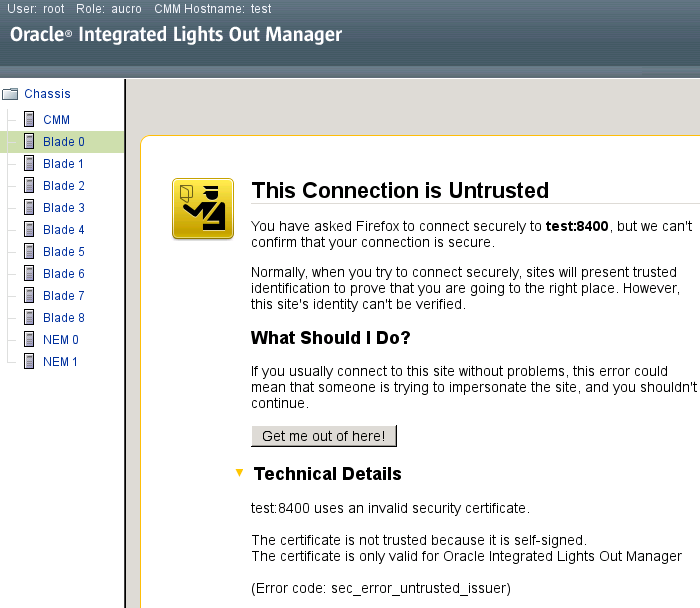
Fig 1. ILOM Certificate error
This is part two of my Make Firefox load ILOM pages. The first post was how to get Integrated Lights Out Manager (ILOM) to load right using Firefox. Part one is focused on getting the ILOM to display properly on a blade or a normal server. This post focuses on getting the ILOM page for the chassis to work.


The issue is when you have logged into the ILOM on the chassis and then try to connect to a individual blade. Figure one shows the error that comes up when you try to connect. Basically the certificate is not excepted by Firefox because it is self-signed.

Fig 2. The fix


This happens when you connect to the blade directly, via the ILOM interface. The issue here is that the button that usually appears that allows you to except the certificate is not there. To get it to where you can load the certificate you need to load the the page outside of the frame. You do this by right clicking on the frame. In the menu select. This Frame and click on Show Only this Frame.


At this point the frame will appear outside the frame. Accept the certificate to load the blades LOM page. To get the frame back go back 2 pages in Firefox. The ILOM page should look like figure 3 when your done. Do this for each blade you need access too.
Fig 3. Finished product

Why does this matter? If you can access the blades ILOM directly then accessing them though the chassis may not be an issue for you. But lets say you don't have your blade cabled up. Many work places don't allow you to connect servers to the network that have not been hardened first. By having the a way to get to the server remotely via the ILOM chassis you can build the server in place and then connect the server to the network after you harden the blade. It is also a good practice to have the ILOMs on there own network.

I can't take credit for this fix. I got this fix from My Oracle Support which means that this is the oracle supported fix. I hope this helps someone. Please feel free to comment below.


Thursday, October 11, 2012

Make Firefox load ILOM pages

I had this issue where Firefox wouldn't load ILOM pages right. I've also noticed that I'm not the only one with this issue. So I'm posting this little how-to for people who are still struggling with this. Basically the content section of the ILOM webpage will not display.

For those who don't know ILOM stands for Integrated Lights Out Manager. It is a web interface that helps you remotely manage servers. This interface is good for monitoring hardware issues and can can send out SNMP traffic. The ILOM can also give you console access. Meaning that you get a console or window that stays connected even during a reboot. Basically it is as if you are physically standing in front of the server with a keyboard and monitor.

Each user will have to add the following file to their home directory.
In ~/.mozilla/firefox/profile_id.default/chrome add a file called userContent.css@media print {
}

@namespace url(http:www.w3.org/1999/xhtml);
#mainpage { visibility: visible !important; }

Note - The profile_id.default will be the only file with .default at the end in the firefox directory. You may have to create the chrome directory.

I originally posted this fix at the forum linked to below, under the user name cyberninja.
https://forums.oracle.com/forums/thread.jspa?messageID=10283552
I also provided this fix to Oracle tech support and if you put in a trouble ticket to My Oracle Support this is the solution they will provide you. So in other words, this is the Oracle supported fix.

I have a second part to this post, where I fix a connection issue between the chassis and their blades.

Tuesday, February 21, 2012

Installing Firefox on a Solaris server.

I looked all over the internet for a how-to for installing Firefox and could not find one. Even the Firefox web page and the download sites didn't have one. Basically the "powers that be" assumed everyone just knew how to do this. Well it is quite easy. Listed below, are the steps for installing Firefox on a Solaris system. This should as work for Linux systems as well, but it is best to use the Linux package manager.

Perform the following tasks as root.
1) Find the location where Firefox is installed and write it down.
# which firefox
/usr/bin/firefox
# ls -l /usr/bin/firefox
/usr/bin/firefox     ->   /usr/lib/firefox/firefox
# ls -l /usr/lib/firefox/firefox
/usr/lib/firefox/firefox
So in this case Firefox is installed at /usr/lib/firefox directory.

2) Download the latest version from OpenSolaris.org or unixpackages.com (sunfreeware).
http://hub.opensolaris.org/bin/view/Community+Group+desktop/development
http://unixpackages.com/packages/mozilla

3) Remove the old version.
# rm -r /usr/lib/firefox
You can also install on top of the old version, if you want. I don't recommend doing this because this will leave behind old unneeded files. It might be a good idea to backup the old files first or install the new version of Firefox in different directory to test.

4) Move file and extract the contents.
# mv firefox-* /usr/lib/
# cd /usr/lib/
# bzip2 -cd files.tar.bz2 | tar xvf -
The commands on the last line work like this; bzip2 uncompress the file and sends the output to tar, which then extracts this archive to the current directory. You have just installed Firefox.

5) Check to see if it works
# firefox
Make sure to test all possible uses of Firefox, such as pages that use JavaScript and Java.

Possible issues

You may need to relink /usr/bin/firefox  to  /usr/lib/firefox/firefox
# ln -s /usr/lib/firefox/firefox /usr/bin/firefox
Anther site that might be usefull.
http://support.mozilla.org/en-US/questions/759697

*** Update ***
The site that hosted the files used in this how-to is no longer online. I have posted new instructions for installing Firefox on this blog. Click on the below to see them.

Installing Firefox on Solaris Update